Final Project
Generate, Revise & Publish
Your Webflow AI generated site — What to Expect
The better your prompt, the closer the result is to what you planned. But even a great prompt will produce things that need fixing. That is the point of Part 2.
What usually works
- Overall page structure and section order
- Navigation between pages
- General layout and spacing
- Subject-appropriate imagery and theme
What always needs fixing
- Colors — ignored or misapplied, even when hex codes are in the prompt
- Fonts — substituted with Webflow defaults
- Navigation — mega menus for 3-page sites are common
- Content — all placeholder text, must be replaced from Step 5
- Accessibility — alt text, contrast, and headings almost always need attention
Part 2 — Seven Requirements
You need to complete the following requirements on a copy your generated website.
- 1 — Color palette (10 pts): Apply your Step 7 hex codes manually in Webflow's Style panel.
- 2 — Fonts (10 pts): Apply your Step 8 fonts via Site Settings and the Style panel.
- 3 — Content (15 pts): Replace all placeholder text with your Step 5 content.
- 4 — Navigation (15 pts): Simplify the AI-generated nav to match a 3-page site. Fix mobile.
- 5 — Footer (10 pts): Clean up the footer — relevant content only, matching your palette.
- 6 — Accessibility audit (15 pts): Run WAVE, fix 2 issues, Take screenshots of the results before and after fixing.
- 7 — Custom 404 page (35 pts): Built from scratch, matching your voice, colors, fonts, and tone. CTA to homepage required.
- 8 — AI audit reflection (10 pts): Answer the 4 questions and add then with the screenshots and a link to the updated website to a word document.
Requirements 1 & 2 — Colors and Fonts
Applying colors in Webflow
- Select the element → Style panel → Background Color or Text Color
- Apply to: navbar, hero section, body sections, buttons, footer
- Use your 4 hex codes
Applying fonts in Webflow
- Step 1: Site Settings → Fonts → Add Google Font → search for your heading font and body font → Add both
- Step 2: Select all H1 elements → Style panel → Font Family → choose your heading font
- Step 3: Repeat for H2 and body text with appropriate sizes
Requirements 3 & 4 — Content and Navigation
Adding your content
- Open your Step 5 response and your Webflow site side by side
- Replace every placeholder text element, section by section, page by page
Fixing the navigation
Webflow AI generates mega menus, dropdown levels, and extra nav items for sites that only have 3 pages. You will almost certainly need to simplify.
- Your nav should contain exactly: Home, [Page 2], [Page 3] — nothing else
- No dropdowns, no mega menus, no placeholder links
- Check the mobile breakpoint — the hamburger menu must work
- Apply your color palette to the navbar
- Screenshot: original nav, simplified desktop nav, mobile nav
Requirement 6 — Accessibility Audit
AI-generated sites almost always have accessibility issues. This is not a failure — it is the point of the exercise. Your job is to catch what the AI missed.
How to run WAVE
- Go to wave.webaim.org
- Paste your published Webflow URL
- WAVE overlays colored icons directly on your page — no account needed
- Screenshot the full results report before making any fixes
Icon colors
- Red — Errors. Fix these.
- Yellow — Alerts. Review these.
- Green — Working correctly.
The category to fix
- Color contrast: Text hard to read against its background. Adjust text or background color in the Style panel until WAVE no longer flags it.
Additional Fixes (optional)
- Alt text: Click the image → Settings panel → Alt Text field. Describe what the image shows — not "image1.jpg".
- Heading structure: Skipped levels (H1 → H3), multiple H1s, or decorative text marked as a heading. Fix: click element → Settings panel → change the HTML tag.
Requirement 7 — Custom 404 Page (35 pts)
This is the only requirement where you design something from scratch without AI generating the structure. It carries the most weight because every decision is yours — layout, copy, color, tone, and CTA.
How to create in Webflow
- Pages panel → click + next to Static Pages → 404 page
- Build it like any other page — same navbar, same footer, same styles
- To test: add /anything to your published URL
Must include
- A message that the page was not found — in your site's voice
- A short piece of copy that fits your subject
- A CTA button back to your homepage
- Your color palette and fonts
Weak vs. strong
| Weak | Strong — Sherlock Holmes |
| 404 — Page Not Found. The page you requested does not exist. Go home. |
The game is afoot — but this page isn't. Even Holmes couldn't deduce what happened here. The page you're looking for has gone missing from 221B. → Back to Baker Street |
The weak version communicates the error. The strong version stays in voice, fits the subject, keeps the visitor engaged, and gives them a clear next step.
Google Analytics
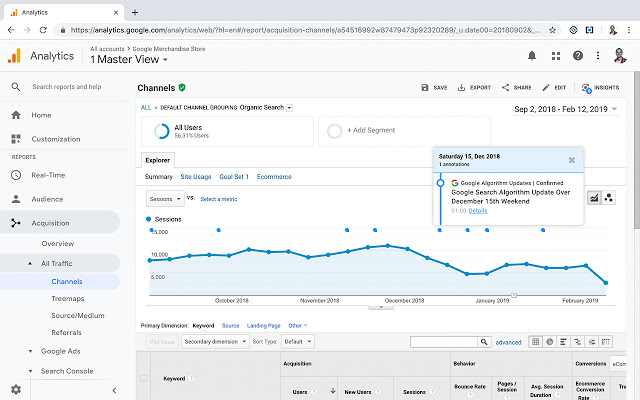
Google Analytics tells you what is actually happening on your site — not what you think is happening.
- How many people visit and when
- Where traffic comes from — search, social, direct
- Which pages people spend time on and which they leave immediately
- Demographics: age, location, device type
Adding Analytics to your Webflow site: Project Settings → Integrations → Google Analytics → paste your Measurement ID.
What is Google Analytics?
Setting Up Google Analytics
Marketing Your Site — Beyond the Assignment
Content is King
- Create high-quality, useful content tailored to your audience
- Regularly update content to keep it current
- Write content that answers real questions your audience is asking
Optimize for Search and AI
- Use keywords naturally in titles, headings, and body text
- Structure content for AI tools like ChatGPT and Claude — clear headings, concise summaries
- Cite sources clearly; write content that can be quoted or summarized
Make It Shareable
- Make your content worth sharing. Strong headlines are important.
- Embed content from YouTube, SoundCloud, Vimeo
- Offer free resources — guides, printables, downloads
Promote and Build Backlinks
- Share in social media bios and email signatures
- If your work is visual, use Pinterest and Instagram
- Ask collaborators or directories to link to you
- Adding your site to your YouTube channel gives you a backlink